
preparing_your_computer_for_remote_edging_with_lensware
This is an old revision of the document!
Table of Contents
Preparing your Computer for remote edging with LensWare
Dealing with connection to VPN
- Logins to Kavita VPN over FotrtiClient:
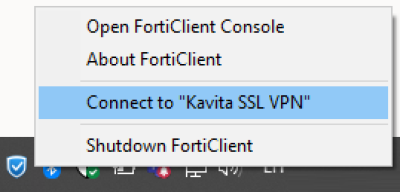
- Right click on FortiClient icon on the task manager
- On the contextual menu select Connect to “Kavita SSL VPN”:
- You will be asked for Microsoft credentials. Log in:
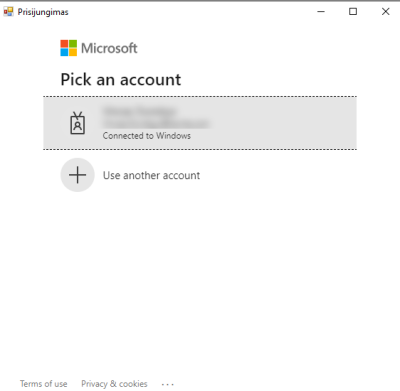
- If ti will as “Pieteikuminformācijas saglabāšana” choose Yes (Ja).
Preparing the LensSOAPTracer program
- Check id LensSOAPTracer is stareted. There should be an icon on task bar indicating that the program is working:
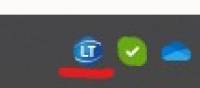 If the LensSOAPTracer is not running, check if you have it installed and if so, run the program:
- Click on the search button at the task bar or press Win + S shortcut:
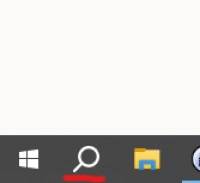
- Search for “LensSOAPTracer” program and start it:
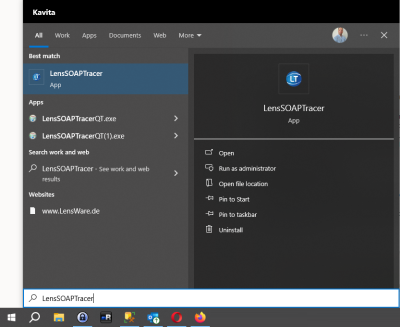
If somehow the LensSOAPTracer program is not available, please follow its installation instructions here.
- Place new order with remote edging:
- Start tracer and place frames in it. Be prepared to start scanning
- Open Form window
- Click Trace shape by tracer. Window with timer should appear
- Click the frame scanning just right after window with timer appears
- After scanning finishes, send the shape to LensWare web order
- The timer windows should change. It should have a button Save+Close. After this actrion frame shape should be visible on LensWare web order’s “Form” page.
TroubleShooting
- If LensWare web order gives error message about lost connection or something abour COM port connection restarert LesnSOAPTracer program by turning it off and running it again.
- If the tracer ios not able to send the frame shape to LensWare web order check if you have connected to the most right COM port connection RS232C
preparing_your_computer_for_remote_edging_with_lensware.1694064947.txt.gz · Last modified: 2023/09/07 13:35 by root