Table of Contents
Preparing your Computer for remote edging with LensWare
Dealing with connection to VPN
- Logins to Kavita VPN over FotrtiClient:
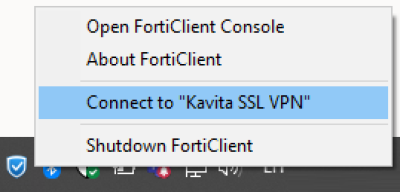
- Right click on FortiClient icon on the task manager
- On the contextual menu select Connect to “Kavita SSL VPN”:
- You will be asked for Microsoft credentials. Log in:
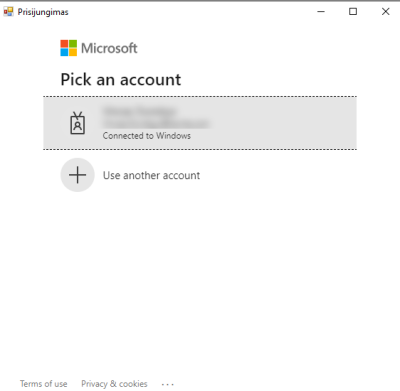
- If ti will as “Pieteikuminformācijas saglabāšana” choose Yes (Ja).


Preparing the LensSOAPTracer program
- Check id LensSOAPTracer is stareted. There should be an icon on task bar indicating that the program is working:
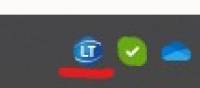 If the LensSOAPTracer is not running, check if you have it installed and if so, run the program:
- Click on the search button at the task bar or press Win + S shortcut:
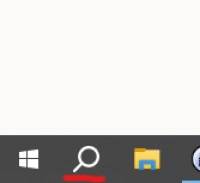
- Search for “LensSOAPTracer” program and start it:
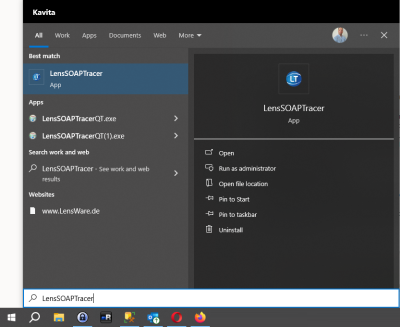
If somehow the LensSOAPTracer program is not available, please follow its installation instructions on LensSOAPTracer installation page.
- Place new order with remote edging:
- Start tracer and place frames in it. Make sure, that You can start scanning instantly.
- Go to Lens order web
- Start creating a new order by clicking the “New Order” link on the left menu:
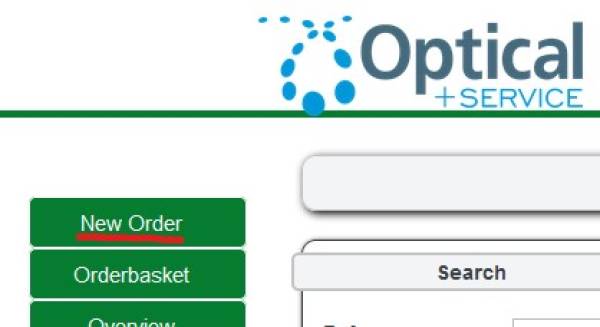
- In order to start remote edging, open Form page in the new order form:

- Click “Trace shape by tracer” button:
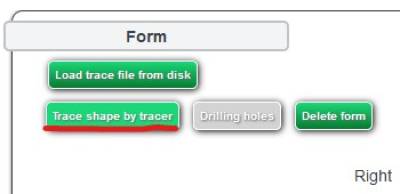 Window with timer should appear
 - Go to Your tracer and start frame scanning just right after window with timer appears.
- After scanning finishes, send the shape to LensWare web order
- The timer windows should change. It should have a button “Save+Close”. After this action frame shape should be visible on LensWare web order’s “Form” page:
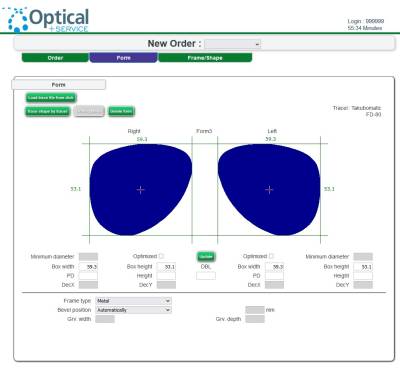


TroubleShooting
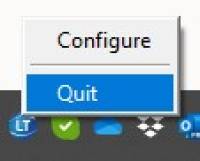
- If LensWare web order gives error message about lost connection or something about COM port connection restart LesnSOAPTracer program by turning it off and running it again by Quiting it and running the program again:
- If the tracer ios not able to send the frame shape to LensWare web order check if you have connected to the most right COM port connection RS232C
